macOS Sleep Prevention Without Caffeinate
macOS has multiple sleep states that require different fixes to prevent each one.
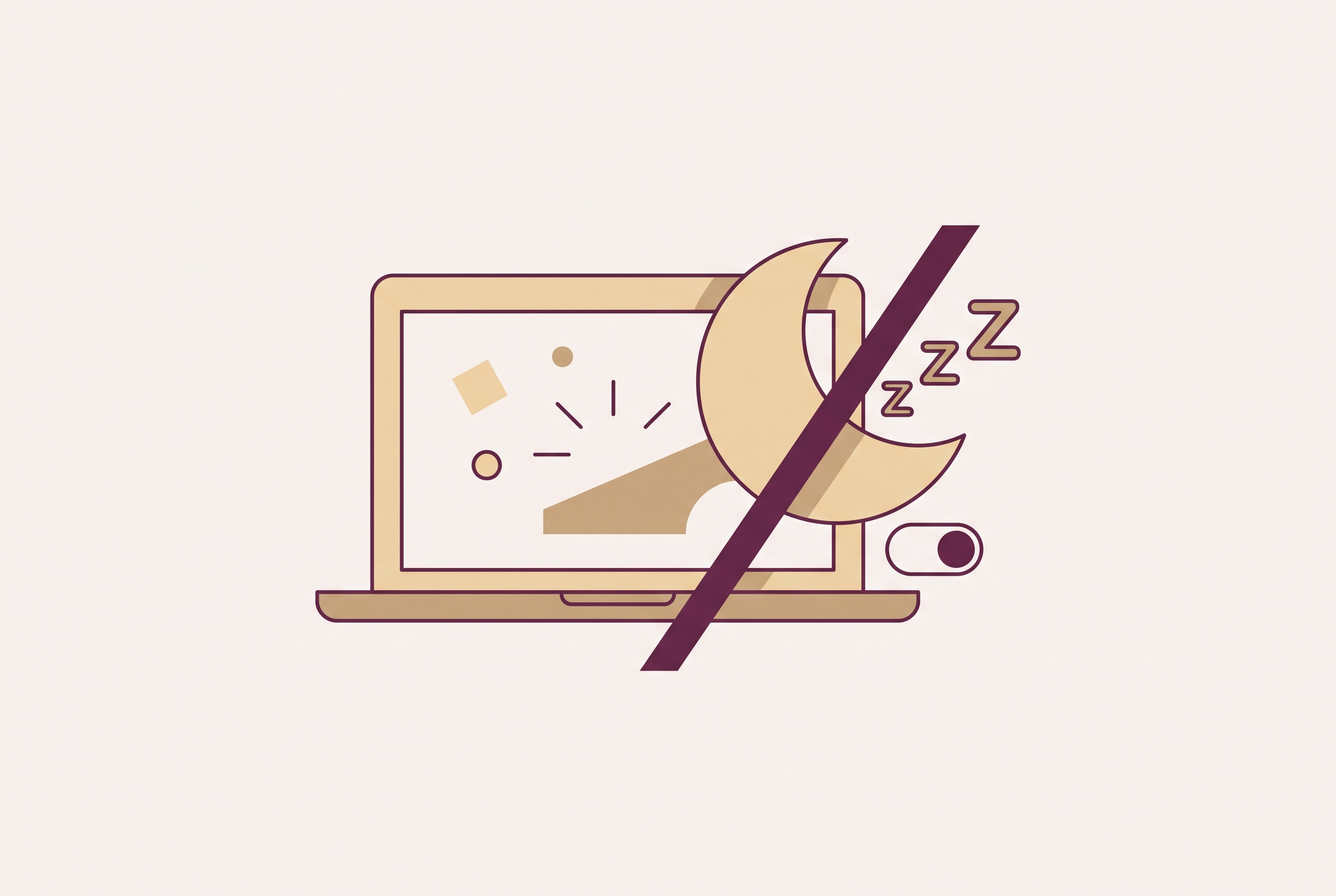
macOS does not have one sleep state. It has several, and most people trying to stop a Mac from sleeping treat them as a single problem, so many fixes only sort of work. Idle sleep, often called system sleep, is a deeper state where the processor, memory, and other components drop into a low-power mode and background tasks pause unless Power Nap is turned on. Clamshell sleep is a third, separate event triggered specifically by closing the lid, and it does not answer to the same controls that govern idle sleep. These three behaviors sit at different layers of the operating system, and a setting that stops one does nothing for the other two. The power assertion, an OS-level hold that tells macOS not to idle into sleep, produces nearly every software fix for any of them, and the most common tool for setting one, caffeinate, ties that hold to a running process: kill the process and the hold disappears with it. A fix built this way can work perfectly until the one process backing it quits, after which it stops working without warning. A script that calls caffeinate and then crashes has, from macOS's point of view, simply withdrawn its objection to sleeping. None of this is trivia. It is the reason a setting that handles display sleep leaves a laptop closing its lid and suspending anyway, and the reason a fix for idle sleep offers no protection once the lid shuts. Before picking a method, the real question is which kind of sleep is actually the problem, because the answer determines which tool, if any, will work.
What System Settings can and cannot prevent
For the most common case, a Mac with its lid open that needs to stay running through a long download, a presentation, or a build, the built-in System Settings app is the right tool and a complete one. Most people reaching for Terminal commands or third-party software are solving a problem System Settings already solves on its own. On macOS Ventura and the versions that followed it, including Sonoma, Sequoia, and Tahoe, the fix requires two separate toggles, and neither one alone finishes the job. In System Settings under Lock Screen, setting "Turn display off on power adapter when inactive" to Never stops the screen from going dark. In System Settings under Battery, turning on "Prevent automatic sleeping on power adapter when the display is off" stops the machine itself from suspending once the screen does go dark, assuming the first toggle hasn't already ruled that out. Both are needed because they govern different things: one keeps the display lit, the other keeps the system running independent of the display. Older systems use different paths to the same result. On macOS Monterey and earlier, the relevant screen is System Preferences under Battery, then Power Adapter, where a slider controls the display timeout and a checkbox labeled "Prevent your Mac from sleeping automatically when the display is off" handles the rest. On macOS Catalina and earlier still, the equivalent panel is Energy Saver, where the slider should move to Never and every available checkbox should be checked. Wherever it sits, this approach has two hard limits to know before relying on it. First, it has no reach into clamshell sleep: close the lid and the Mac suspends regardless of how these toggles are set, because clamshell sleep operates below the layer these settings touch. Second, there is no built-in timer or expiration on any of these settings. Setting the display timeout to Never during a three-hour render and forgetting to change it back means the Mac may sit at full brightness, fully awake, for days afterward, quietly spending battery cycles and energy for no reason.
pmset's extended coverage and its risks
pmset, the command-line power management tool built into macOS, reaches some behaviors System Settings cannot touch, and its two main commands behave in ways that are easy to confuse. Running pmset -c sleep 0 disables system sleep while the Mac is plugged in, and pmset -a sleep 0 extends that same effect to battery power as well. Functionally, these two commands do roughly what the equivalent toggles in the system's graphical settings do, just from the terminal instead of the graphical interface, and they carry a similar level of risk. The command that changes the picture entirely is sudo pmset -a disablesleep 1. Unlike the sleep 0 commands, this one tells macOS outright not to enter system sleep at all, and on Intel Macs, it can keep the machine running even through a closed lid. That qualifier about chip type is not a minor footnote: on some newer chip architectures, this behavior does not extend the same way, and anyone on one of those chips relying on disablesleep to survive a lid close is working against a wall the command cannot get past. The deeper issue with disablesleep has nothing to do with chip architecture and everything to do with what kind of thing it is. A power assertion from caffeinate is tied to a live process, so when that process ends, the hold ends with it. disablesleep is a stored flag, set once and left in place, with no process watching over it and no expiration built in. The process that set it can crash, finish, or simply vanish, and the flag stays exactly where it was left. Nothing in macOS notices, nothing times out, and the Mac will not sleep again until someone manually reverses the setting, even across a restart. disablesleep does not appear in Apple's official pmset manual page, making it undocumented and unsupported, and a future macOS update could alter or remove it without warning. The practical risk affects the hardware directly. A MacBook with disablesleep left on will keep running its background processes inside a closed bag, draining its battery completely and accelerating the kind of capacity loss that shortens a battery's useful life. There is no thermal monitoring built into a raw pmset command. If a demanding process kicks off while the lid is shut and the screen is dark, the Mac has no mechanism in this configuration to throttle itself, and it will simply overheat. Free and built into the operating system does not mean safe to leave running unattended. The absence of a timer or a battery floor in pmset is the actual danger of using the tool this way.
Choosing among third-party menu bar apps by scenario
Third-party menu bar apps exist because System Settings and pmset leave real gaps, not because people prefer a nicer interface. The better ones solve problems neither built-in option handles safely or with enough control, and which one fits best depends entirely on the situation.
Amphetamine, made by William Gustafson and free on the Mac App Store, is built around a trigger system that most users will eventually want even if they do not realize it yet. Rather than applying one blanket rule, it can activate sleep prevention conditionally: when a specific app is running, when the Mac joins a particular Wi-Fi network, when a USB or Bluetooth device connects, when a volume mounts, when headphones or another audio output is active, or when an external display is plugged in. It can also prevent sleep through a closed lid, something System Settings cannot do. For workflows that need conditional rather than constant sleep prevention, especially server-style or background-process setups meant to run automatically after every reboot, it is worth adding to login items so it starts without anyone remembering to launch it by hand, a detail documented in the setup guidance for tools like BlueBubbles that depend on a Mac staying awake in the background.
KeepingYouAwake, made by Marcel Dierkes and distributed free and open source through Homebrew with brew install --cask keepingyouawake, takes the opposite approach. It is essentially a menu bar wrapper around Apple's own caffeinate tool, offering preset durations and an option to stop automatically when the battery runs low. It has no trigger system and no closed-lid mode, so it inherits the same architectural limits as caffeinate itself. For someone who just wants a one-click toggle to stop idle sleep while the lid stays open, it does what's needed and little else.
Lungo, available on the Mac App Store, fills a similar space to KeepingYouAwake as a straightforward menu bar toggle for keeping a Mac awake.
Caffeine for Mac, free and open source under the MIT license, offers a single cup icon in the menu bar that toggles sleep prevention with one click. The original version of the app was discontinued, but it has since been picked up and maintained by new owners, with updates arriving as recently as 2026.
None of these apps is the universally correct choice. The real question is whether a given scenario needs conditional activation, the kind of intelligence Amphetamine provides, or whether a plain on/off switch like KeepingYouAwake covers everything the task requires. Most casual, short-term needs are served fine by a simple toggle. Anything tied to a specific network, device, or recurring background job benefits from Amphetamine's trigger logic instead.
Mouse input simulation as a separate problem from sleep prevention
Keeping a Mac from sleeping and keeping a chat status from going idle are not the same problem, and treating them as if they were wastes time without fixing anything. Workplace chat apps track keyboard and mouse activity independently of whatever sleep state the Mac is in, so a machine that never sleeps can still show an idle or away status if nothing has touched the input devices in a while. The same disconnect applies to remote desktop tools. Citrix, VMware, and Microsoft RDP sessions can log a user out after a period of no detected mouse or keyboard input, regardless of whether the underlying Mac is technically awake the entire time. Sleep prevention has no effect on any of this, because the thing being monitored isn't sleep state at all, it's input activity. The tools built for this problem work by generating actual input events rather than holding a power assertion. Hardware mouse jigglers are small USB devices that physically move the cursor on a schedule, requiring no software installation and offering plug-and-play simplicity, though with less flexibility than a software equivalent. Software-based mouse simulators generate the same kind of real input events, often with smoother, randomized motion patterns, and some include a silent or invisible mode designed not to interfere with whatever work is actually happening on screen. For anyone whose problem is a chat app going idle or a remote session timing out, sleep-prevention software changes nothing, because the system was never asleep. For workflows that need both the machine to stay awake and presence or session activity to register as live, both categories of tool have to run together, since each one solves a problem the other does not touch.
Unattended AI and long-running workloads and the risk calculation they change
A newer category of workload breaks every method covered so far, because all of them assume a person is at least nearby to notice when something goes wrong. Overnight AI agent runs and long compute pipelines, Ollama models running locally, Claude Code agent sessions, Cursor or Codex build pipelines, overnight render jobs, all share one defining trait: they run to completion or failure with no one watching. macOS's standard sleep-prevention mechanisms were never built with that scenario in mind, and none of them have any concept of battery level or chip temperature built into how they operate. Using caffeinate -i to hold a Mac awake through an unattended job illustrates the gap clearly: if the battery runs critically low, the Mac does not sleep gracefully at some sensible, user-set threshold. It runs until it hard-shuts-down or gets force-slept by macOS's own emergency low-battery cutoff, a blunt stop rather than a controlled one. pmset disablesleep 1 is worse in exactly this scenario, because it is a global flag rather than something tied to a process, trivially easy to leave switched on, with no sense of battery level or internal temperature. Picture that flag set on a laptop running a long job inside a closed bag: the lid is shut, the job is heavy, and nothing in the configuration is watching for either problem. Running hot for extended stretches is also how batteries swell and lose capacity faster than they should. This is the specific gap a dedicated lid-aware keep-awake tool is built to close. It holds a Mac awake at the OS level, including through a closed lid, and then releases that hold automatically once the job actually finishes, so nothing stays awake all night by accident the way a stray pmset flag can. A charging-only mode can require the Mac to be connected to mains power before it will hold the lid closed at all, removing the battery-drain failure mode entirely for that use case. It can be triggered from the menu bar or wrapped directly around a command, as in lidrun -- your-command, so a build script or render job carries its own wake lock with it. The core keep-awake functionality is free, while the closed-lid mode is a Pro feature. For a workload that is unattended, long-running, and expected to happen with the lid shut, these guardrails are not an extra convenience. They separate a job that finishes cleanly from a laptop that overheats in a bag with no one around to notice.
A locked-down managed Mac changes what is available, and browser-based options fill that gap
Everything described above assumes some ability to install software or run Terminal commands, and that assumption fails on a locked-down, enterprise-managed Mac. Many corporate deployments block the official app store, disable third-party package installers, and restrict changes to system settings through mobile device management policies, which rules out any menu bar keep-awake utility and any other tool that needs an installer or admin rights. What's left depends on how strict the specific policy is. If IT allows changes to display and sleep timers, System Settings is still the first thing to check and may be enough on its own for the lid-open case. Terminal access and pmset may or may not be available, depending on whether the account has admin rights, and fully managed devices often block this path. Browser-based tools such as ScreenWakeUp need no installation rights at all and run entirely inside the browser, making them one of the few options left standing on a tightly locked device. Hardware mouse jigglers fit the same constraint for a different reason: because they need no software and no admin access, they work regardless of how restrictive the MDM policy is. The limit to keep in mind is that browser-based tools generally address display sleep and idle detection only, with no reach into system sleep or clamshell sleep, so anyone relying on one should know in advance which kind of sleep they're actually fighting. That question, which sleep is actually the problem, is the same one this entire piece started with, and it's the one that decides whether System Settings, pmset, a menu bar app, or a browser tool is the right answer in any given situation.
Sources
- Prevent macOS from Sleeping
Provided context on running Amphetamine as a login item for background-process setups like BlueBubbles that depend on a Mac staying awake.
- Pmset
Informed the description of pmset commands including the sleep 0 and disablesleep flags and their behavior.
- Sleep mode
Provided background on the distinction between different sleep states including idle sleep and clamshell sleep.
- How do I prevent my Mac from going to sleep in macOS Sequoia 15.5?
Informed the description of the two-toggle fix in macOS Ventura and later versions under Lock Screen and Battery settings.
- Set sleep and wake settings for your Mac - Apple Support
Provided the official Apple guidance on sleep and wake settings referenced for System Settings paths across macOS versions.
- Posted on 03-02-2023 07:17 AM
Informed the section on managed Mac environments and MDM policies blocking system settings changes.
- Caffeine - Keeps your Mac awake.
Provided details on Caffeine for Mac including its MIT license, discontinuation, and revival with updates as recently as 2026.
- KeepingYouAwake — Utility Menu Bar App for macOS
Provided details on KeepingYouAwake including its Homebrew distribution and battery-low auto-stop feature.