Caffeinate Flags That Actually Prevent Disk Sleep
Use the -m flag to prevent disk sleep during backups, transfers, and long-running jobs.

Most people assume caffeinate has one job: keep the Mac from going to sleep. It actually has four separate jobs, and the flag that covers disk sleep is not the one most people reach for. This matters to anyone running a backup, a large file transfer, or an overnight build on a Mac they expect to stay fully awake until the job finishes.
How macOS Power Management Is Layered
macOS does not treat sleep as a single switch. It tracks four distinct states: display sleep, idle system sleep, disk idle sleep, and full system sleep. Each one has its own IOKit assertion behind it, and none of those assertions stands in for another. There's no master toggle that covers all four at once.
Instead of changing any system setting, the caffeinate command creates temporary power management assertions, using the same IOKit framework that apps like Zoom and Keynote rely on to keep a screen awake during a call or a slide deck. Each assertion is a simple request: don't let this particular thing happen while the process holding it is running. The moment the caffeinate process exits, whatever assertions it was holding disappear with it, and the system goes back to its normal sleep behavior immediately.
Because these four layers are tracked separately, asserting one does not cover the other three. A command that keeps the system from idling will not, on its own, say anything to the disk subsystem. This is the reason flag choice is not a cosmetic detail: the flags are not different-strength versions of "stay awake." Each is a request aimed at one specific subsystem, and picking the wrong one leaves the layer you actually care about completely unprotected.
What each flag asserts, verified against pmset output
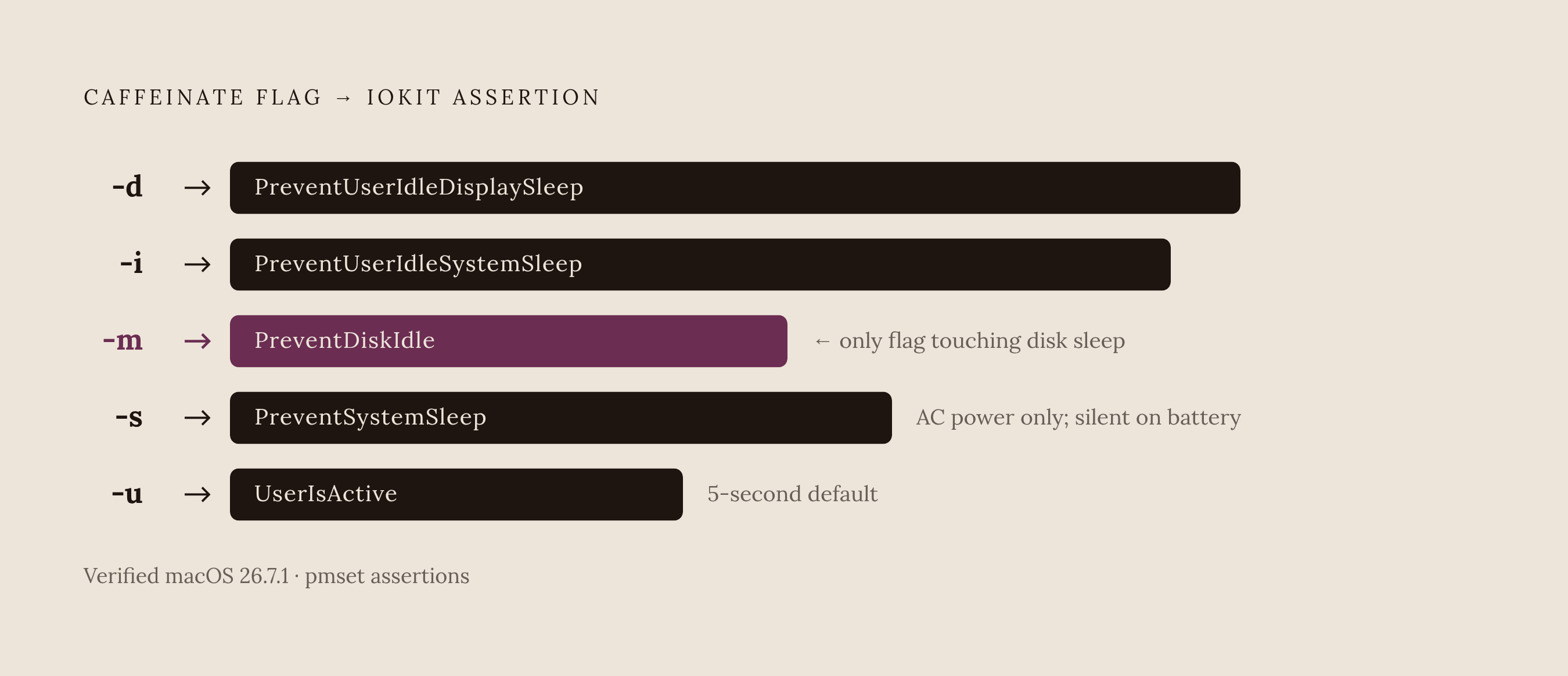
Every caffeinate flag maps to exactly one named IOKit assertion, and those assertions show up in real time when you run pmset -g assertions. Verified on a MacBook running macOS 26.7.1 (Apple silicon) on 30 September 2026, the mapping is:
-d creates PreventUserIdleDisplaySleep. The screen stays on, but the system itself can still idle into sleep unless -d is paired with -i.
-i creates PreventUserIdleSystemSleep. The system stays awake, but the display is free to sleep.
-m creates PreventDiskIdle. This blocks disk idle sleep specifically, and it covers no other layer.
-s creates PreventSystemSleep, which blocks full system sleep, but only while the Mac is on AC power. On battery, it has no effect, and nothing tells you that.
-u creates UserIsActive, which declares the user active and wakes the display if it's off. It lasts five seconds unless you add -t to extend it.
No flag spills over into another flag's territory. Running -i does not create PreventDiskIdle, and running -d does not create PreventUserIdleSystemSleep. A live capture of pmset -g assertions while caffeinate -dims is running shows four separate assertion lines, each a distinct assertion type, all listed under the same process name, "caffeinate command-line tool." That output is the clearest proof that these layers are genuinely independent at the operating system level, not just independent in the documentation. Flags combine freely: -di behaves identically to running -d and -i separately, producing two assertions at once.
Why -d and -i Do Not Prevent Disk Sleep
The two flags people reach for first when they want to "keep the Mac awake" are -d and -i, and neither one creates a PreventDiskIdle assertion. Neither can stop disk sleep under any circumstances, no matter how the command is phrased.
For an unattended job like a background download or a backup, -i is often the right call on its own terms: it lets the display turn off while keeping the system itself awake, which is the behavior most background jobs actually need. But staying awake as a system and keeping the disk spinning are governed by two different assertions. A Mac can hold PreventUserIdleSystemSleep the entire time and still let its disk idle out underneath the job that's running.
-d covers even less ground. It keeps the screen lit but does nothing for idle system sleep unless it's paired with -i, putting it further still from anything resembling disk-sleep prevention.
The practical cost of this gap is a job that fails without telling you why. The Mac looks awake by every signal the user checks: the screen might be on, the system shows no sleep indicator, the terminal reports nothing unusual. Meanwhile the disk spins down mid-task, and the result is a backup that errors out, a file transfer that stalls partway through, or a video file that stutters and pauses. Nothing in the command's output flags the problem, because caffeinate exits cleanly either way. The disk assertion that would have prevented it was simply never requested.
What -m Does
Among every flag caffeinate offers, -m is the only one that creates a PreventDiskIdle assertion. No other flag touches it, and no combination of the other flags produces it as a side effect.
The common line is that -m is rarely needed on modern SSD Macs, and that's true only for internal NVMe storage, which has no moving parts and nothing to spin down. That framing leaves out a real population of users for whom -m is not optional. Anyone working with an external spinning hard drive, including enclosures from a maker like OWC, is working with hardware that has its own firmware-level sleep behavior. Turning off the "Put hard drives to sleep when possible" setting in macOS does not reliably override that firmware, because the drive can decide to sleep on its own regardless of what the OS is asserting.
External SSDs connected over USB run into a related but separate issue: the USB port itself powers down when the Mac enters system sleep, which is what produces the familiar "disk not ejected properly" error. Pairing -m with -i addresses both halves of that problem at once, covering the disk idle assertion directly and keeping the system awake so the USB port stays powered. Disk sleep and system sleep are triggered by different mechanisms, and preventing one does nothing to prevent the other. Anyone relying on external spinning media, or on an external SSD over USB during a long transfer, needs -m specifically, not a stronger version of -i or -d.
Why -s is not the all-encompassing alternative practitioners assume
Some practitioners treat -s as the strongest version of "stay awake" and assume it quietly covers everything the weaker flags miss, including disk sleep, but it doesn't.
-s means "don't sleep at all, full stop," rather than just "don't dim the screen and idle into sleep," which matters when an aggressive pmset sleep timer or Power Nap is working against a long job. But that protection only applies while the Mac is plugged into AC power. On battery, macOS simply ignores the PreventSystemSleep assertion, with no error message and no indication that it was discarded. Advice on Apple's own community forums often recommends -s as a catch-all fix, and that advice holds up fine on AC power but fails silently the moment the Mac is unplugged, and it still leaves the disk idle layer completely unaddressed either way.
-s also leaves USB ports vulnerable to power-down, because USB port activation is tied to the system's overall sleep state rather than to the PreventSystemSleep assertion by itself. Anyone who needs both AC and battery coverage should pair -s with -i: -i keeps working on battery, and -s takes over once AC power is restored. Neither one, alone or together, substitutes for -m when disk sleep is the actual concern.
Practical flag combinations for common disk-intensive scenarios
For almost any task where disk activity can't be interrupted, caffeinate -im is the right place to start, with other flags added only when the job demands them. For a background disk-intensive job like a build, a backup, or a large file transfer, running caffeinate -im./nightly-backup.sh blocks both idle system sleep and disk idle sleep without forcing the display to stay on, and the assertion ends on its own the moment the script finishes, so there's nothing to clean up afterward. For a plugged-in overnight job where battery drain isn't a concern, caffeinate -s./long-scan.sh blocks full system sleep while on AC and is deliberately ignored on battery, which works as a safeguard against a forgotten process draining a laptop dry; if that job is also disk-intensive, add -m so the command becomes caffeinate -sm./long-scan.sh, since -s alone still won't touch disk sleep. When the job in question was already running before you thought to wrap it in caffeinate, tying the assertion to its process ID with something like caffeinate -im -w $(pgrep -x "rsync") covers the same ground without restarting the job. For an overnight scan or a lab build where no interference from any sleep layer is acceptable, stacking every flag at once with caffeinate -dimsu./long-scan.sh covers disk, idle system, display, system sleep on AC, and user-active status all together. When a job needs a fixed runtime rather than running until it exits on its own, shell arithmetic makes the duration flag easier to read, so caffeinate -im -t $(( 3 60 60)) is clearer than typing out the raw number of seconds, but remember that -t is ignored once a utility is specified on the command line.
How to confirm the assertion you expect is held
Checking the live assertion list, rather than trusting the command that launched it, is the only way to know whether a given caffeinate command is actually preventing disk sleep. Running pmset -g assertions while caffeinate is active shows every held assertion alongside the process ID that holds it, so you can look directly for PreventDiskIdle, PreventUserIdleSystemSleep, PreventSystemSleep, or PreventUserIdleDisplaySleep next to caffeinate's PID. If PreventDiskIdle isn't in that list, the -m flag either wasn't used or the process has already exited, and the disk has no protection no matter what other assertions happen to be present.
To cut through the noise, piping the command through pmset -g assertions | grep caffeinate narrows the output to caffeinate's own lines. After the job finishes, running pmset -g assertions | grep -c caffeinate and getting back a 0 confirms nothing was left behind. Activity Monitor offers a faster check for anyone who'd rather not live in the terminal: its Energy tab lists caffeinate under "Preventing Sleep" for as long as the assertion is held. If the assertion list comes back empty even though caffeinate appears to be running, the likely explanations are that the process already exited (check with pgrep caffeinate), the terminal tab that launched it was closed, or -s was used while running on battery and got silently dropped. The same pmset check also reveals assertions held by other software, including apps like Amphetamine, Electron-based apps, or an orphaned caffeinate process left running from an earlier session, which is often the actual explanation when a Mac refuses to sleep for reasons that have nothing to do with the command you just ran.
The limits caffeinate cannot override
caffeinate's assertions only last as long as the process and the session that created them, and several real sleep triggers sit entirely outside that reach. Mistaking one of these for a failure of caffeinate itself usually means reaching for the wrong tool to fix it.
Closing the lid on a MacBook triggers forced sleep, not idle sleep, and it overrides every assertion caffeinate holds. Apple's own Technical Q&A QA1340 draws this line directly: assertions can prevent idle sleep, and at most delay forced sleep, but they have no path into clamshell mode once the lid shuts. caffeinate also carries no awareness of battery level on its own: -i and -d will keep running on battery right up until the Mac dies, and -s is the only flag that limits itself on battery, which is the same behavior that makes it unreliable as a stand-in for -m. The -t flag only accepts whole seconds, so caffeinate -t 2h will not run for two hours. It runs for 2.1 seconds with no error raised, so durations should always be supplied as a plain integer count of seconds. A bare caffeinate launched in the background with no utility attached and no timeout set will also die the moment its terminal window closes, so running it with nohup caffeinate & or inside a tmux session is what keeps it alive past that point, and checking for orphaned instances with pgrep caffeinate now and then is good practice on any shared or lab Mac.
Some needs are permanent rather than task-scoped, and that's where pmset takes over. Running sudo pmset -a disksleep 0 writes a standing setting that survives reboots and keeps disk sleep off indefinitely, a far more invasive change than a single caffeinate -m session. caffeinate exists for task-scoped prevention tied to one job, while pmset exists for standing policy changes tied to how the machine behaves at all times, and reaching for pmset only makes sense when the need is actually permanent and someone remembers to revert it later. The rule that covers nearly every case: use caffeinate -m or caffeinate -im when the goal is getting one disk-intensive task across the finish line, and reserve pmset disksleep 0 for the rare case where disk sleep should stay off as a standing policy, not just for the length of a single job.
Sources
- caffeinate: the macOS command to keep your Mac awake — Perked
Provided background on caffeinate's IOKit assertions, flag meanings, and how the command interacts with macOS power management.
- Prevent external drives from spinning down - Apple Community
Sourced the point that community forum advice often recommends -s as a catch-all fix that fails silently on battery.